
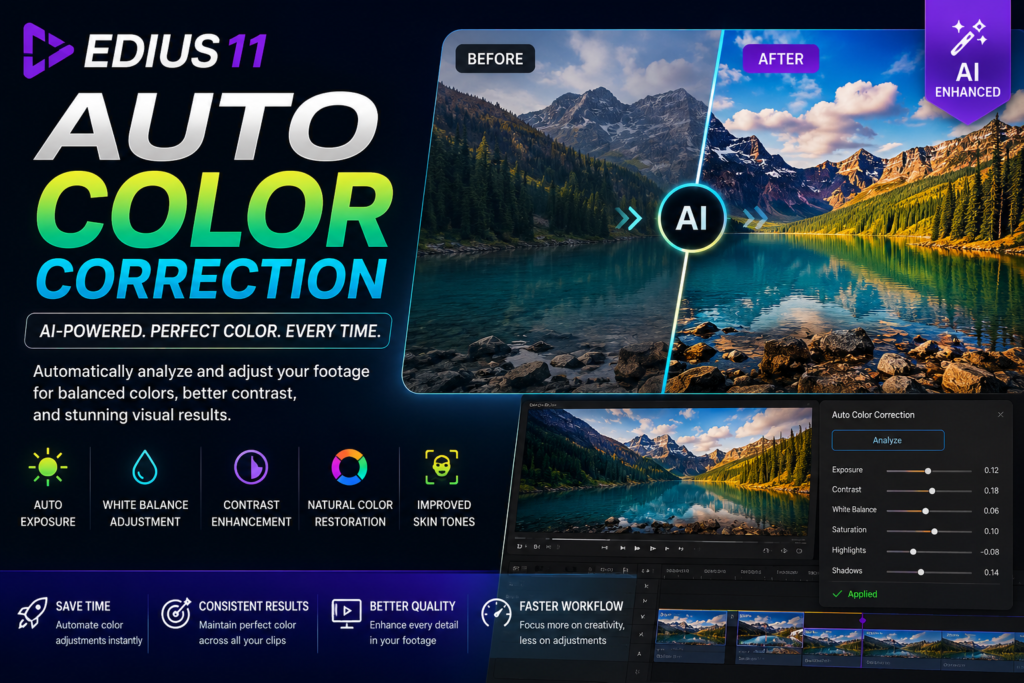

Color correction is one of the most important steps in video editing. Proper color balance improves the visual quality of your footage, creates consistency across multiple clips, and gives your videos a professional look. However, manually adjusting exposure, white balance, contrast, and saturation for every clip can be time-consuming.
Fortunately, Auto Color Correction in EDIUS 11 simplifies this process by using intelligent algorithms to analyze your footage and automatically apply balanced color adjustments. Whether you’re editing wedding videos, YouTube content, documentaries, corporate projects, or broadcast productions, this feature helps you achieve consistent and natural-looking results in less time.
What Is Auto Color Correction in EDIUS 11?
Auto Color Correction is an AI-assisted feature in EDIUS 11 that automatically analyzes the color characteristics of a video clip and applies corrections to improve its overall appearance.
Instead of manually adjusting multiple color settings, the software evaluates important image elements such as brightness, contrast, white balance, shadows, highlights, and color tones. As a result, editors can quickly improve footage with minimal effort.
Moreover, Auto Color Correction serves as an excellent starting point for additional color grading if a more cinematic or creative look is required.
Why Auto Color Correction Is Important
Every camera captures colors differently. In addition, lighting conditions often change throughout a shoot, making it difficult to maintain a consistent look across multiple clips.
Without proper color correction, videos may appear:
- Too dark or too bright
- Overexposed or underexposed
- Too warm or too cool
- Dull and flat
- Inconsistent between different camera angles
Fortunately, Auto Color Correction helps solve these problems automatically. Consequently, editors spend less time making manual adjustments while achieving more consistent results.
Key Features of Auto Color Correction in EDIUS 11
Intelligent Scene Analysis
Auto Color Correction begins by analyzing each clip individually.
The feature evaluates:
- Brightness
- Exposure
- Contrast
- White balance
- Color temperature
- Highlight and shadow details
Based on this analysis, EDIUS automatically applies balanced corrections that improve the overall appearance of the footage.
Automatic White Balance Adjustment
Incorrect white balance is one of the most common issues in video editing.
Fortunately, Auto Color Correction automatically adjusts the white balance to produce more natural colors. As a result, skin tones look more realistic, and unwanted blue or orange color casts are minimized.
Exposure Optimization
Lighting conditions often vary throughout a project.
Auto Color Correction intelligently adjusts exposure by:
- Brightening dark footage
- Reducing excessive brightness
- Recovering shadow detail
- Improving highlight balance
Consequently, videos appear more evenly exposed without extensive manual editing.
Contrast Enhancement
Proper contrast adds depth and clarity to an image.
The Auto Color Correction tool automatically improves contrast while preserving important details in both bright and dark areas. Furthermore, the enhanced contrast gives footage a cleaner and more professional appearance.
Natural Color Restoration
Some footage may appear washed out or overly saturated.
Auto Color Correction intelligently restores natural colors by balancing saturation levels without making the image look artificial. Therefore, landscapes, skin tones, and objects appear vibrant while maintaining realistic color reproduction.
Improved Skin Tone Accuracy
Skin tones play a major role in professional video production.
Fortunately, Auto Color Correction helps produce balanced and natural-looking skin tones, making it especially useful for:
- Wedding videos
- Interviews
- Corporate presentations
- YouTube content
- Documentary productions
As a result, editors spend less time making individual skin tone adjustments.
Benefits of Auto Color Correction
Using Auto Color Correction offers several advantages throughout the editing process.
First, it dramatically reduces the time required for basic color adjustments.
Additionally, it creates greater consistency between clips recorded under different lighting conditions.
Furthermore, editors can begin creative color grading from a well-balanced image rather than correcting technical problems first.
Other important benefits include:
- Faster editing workflow
- Improved visual consistency
- Better image quality
- Reduced manual corrections
- Professional-looking results
- Beginner-friendly operation
How to Use Auto Color Correction in EDIUS 11
Applying Auto Color Correction is quick and straightforward.
Step 1: Import Your Footage
Begin by importing your video clips into the EDIUS 11 timeline.
Step 2: Select the Clip
Next, select the clip that requires color correction.
Step 3: Open the Color Correction Panel
Navigate to the video effects or color correction section within EDIUS.
Step 4: Apply Auto Color Correction
Choose the Auto Color Correction effect and apply it to the selected clip.
The software immediately analyzes the footage and applies automatic adjustments.
Step 5: Review the Results
After processing, compare the corrected clip with the original footage.
If necessary, fine-tune exposure, contrast, or saturation to match your preferred visual style.
Step 6: Continue Editing
Once you’re satisfied with the results, continue editing your project or apply additional color grading effects for a more creative look.
Best Practices for Auto Color Correction
Although Auto Color Correction produces excellent results automatically, following a few best practices can improve overall quality.
Start with High-Quality Footage
Better source footage always produces better correction results. Therefore, record using proper camera settings whenever possible.
Maintain Consistent Camera Settings
Using consistent white balance and exposure settings during filming helps Auto Color Correction perform more accurately.
Compare Before and After
Always compare the corrected image with the original clip. This allows you to confirm that the automatic adjustments improve the overall appearance.
Fine-Tune When Necessary
Although the AI performs most adjustments automatically, some clips may still benefit from minor manual refinements. Consequently, reviewing each corrected clip ensures the best possible results.
Match Multiple Camera Angles
If your project uses footage from different cameras, Auto Color Correction provides an excellent starting point for achieving a consistent look across all clips.
Common Use Cases
Auto Color Correction is suitable for many different editing projects.
For example, wedding filmmakers can quickly balance footage captured in changing lighting conditions throughout the day.
Similarly, YouTube creators can improve video quality without spending hours adjusting color manually.
Meanwhile, documentary editors can correct interviews recorded in different environments while maintaining consistent visuals.
Corporate production teams can also enhance presentations and promotional videos with minimal effort.
Additionally, broadcasters can standardize footage from multiple cameras before final delivery.
Performance Considerations
Auto Color Correction is optimized for efficient performance in EDIUS 11.
However, processing speed depends on several factors, including:
- Processor performance
- Graphics card capabilities
- Available system memory
- Video resolution
- Project complexity
For the best experience, use a modern multi-core processor, a dedicated NVIDIA or AMD graphics card, SSD storage, and at least 16 GB of RAM.
Who Should Use Auto Color Correction?
Auto Color Correction is valuable for editors of all experience levels.
YouTube Creators
- Improve video quality quickly
- Maintain consistent visuals
- Reduce editing time
Wedding Videographers
- Correct changing lighting conditions
- Enhance skin tones
- Deliver polished wedding films faster
Corporate Video Producers
- Standardize interview footage
- Improve presentation quality
- Create professional marketing content
Documentary Filmmakers
- Balance footage from different locations
- Improve interview consistency
- Speed up post-production
Broadcasters
- Maintain consistent color across multiple camera sources
- Improve production efficiency
- Meet professional broadcast standards
Tips for Better Results
To maximize the effectiveness of Auto Color Correction, follow these recommendations:
- Record using the highest possible video quality.
- Use proper exposure during filming whenever possible.
- Avoid excessive overexposure or underexposure.
- Review corrected clips before exporting.
- Apply additional manual color grading if a creative style is required.
- Keep EDIUS 11 updated to benefit from the latest improvements.
By following these practices, you’ll achieve more accurate and visually appealing results.
Final Thoughts
Auto Color Correction in EDIUS 11 is a powerful AI-assisted feature that helps editors improve video quality quickly and efficiently. By automatically analyzing exposure, white balance, contrast, saturation, and color balance, it delivers consistent and professional-looking results with minimal manual effort.
Moreover, it serves as an excellent foundation for advanced color grading, allowing editors to focus on creativity instead of repetitive corrections. Whether you’re producing YouTube videos, wedding films, documentaries, corporate content, or broadcast projects, Auto Color Correction can significantly speed up your workflow while enhancing the overall visual quality of your videos.
