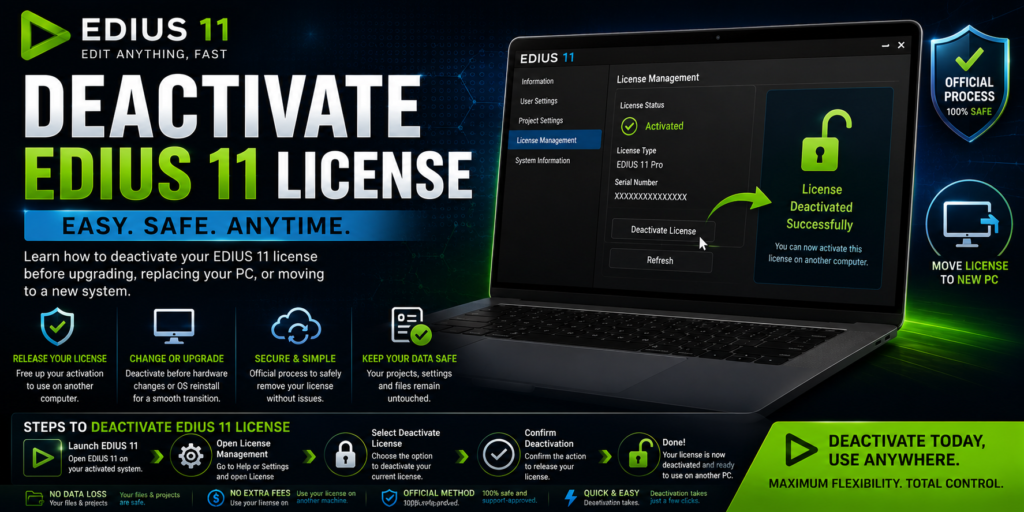

EDIUS 11 uses a modern licensing system that allows users to activate and manage their software securely. There
Introduction
There are several situations where you need to deactivate your EDIUS 11 license, such as upgrading your computer, replacing hardware, reinstalling Windows, or moving your license to another device. Understanding the correct deactivation process is important, because it ensures your license remains available for future activation and prevents unnecessary activation issues. With that in mind, this guide explains everything you need to know about deactivating an EDIUS 11 license safely and correctly.
Why You May Need to Deactivate Your EDIUS 11 License
There are several common situations where deactivation is recommended, including:
- Upgrading to a new computer
- Reinstalling Windows
- Replacing a motherboard
- Changing major hardware components
- Selling your computer
- Moving the license to another workstation
- Troubleshooting activation problems
In general, deactivating the license before making major system changes helps avoid activation conflicts later.
Understanding the EDIUS 11 Licensing System
EDIUS 11 uses an online license management system. Specifically, your activation is linked to:
- Your EDIUS account
- Your product serial number
- Your computer’s hardware configuration
Therefore, when significant hardware changes occur, the licensing system may identify the computer as a new device. This is why deactivation is recommended before major upgrades.
Benefits of Proper License Deactivation
Proper deactivation provides several advantages, such as:
- Preventing activation conflicts
- Freeing a license seat
- Simplifying migration to a new computer
- Reducing support requests
- Ensuring smooth reactivation
Overall, following the correct procedure can save considerable time later.
Before Deactivating Your License
Before starting the process, it is a good idea to back up important data. For instance, consider saving:
- EDIUS project files
- Custom presets
- User profiles
- Export settings
- Effect templates
- Keyboard shortcuts
As a result, this makes the transition to another system much easier.
How to Deactivate EDIUS 11 License
Step 1: Connect to the Internet
First, the deactivation process requires communication with the licensing server. Before proceeding, ensure that:
- Your internet connection is active
- Firewall settings are not blocking EDIUS
- Antivirus software is not interfering with licensing services
Step 2: Launch EDIUS 11
Next, open EDIUS 11 normally using your activated installation, and allow the software to load completely before proceeding.
Step 3: Open License Management
Then, navigate to the license management section within EDIUS. Depending on your version, licensing options may be located within:
- Help menu
- License settings
- Activation management
- EDIUS ID management
Once there, locate the option related to license administration.
Step 4: Select Deactivate License
After that, choose the license deactivation option. The software may display:
- License information
- Serial number details
- Current activation status
Before continuing, review the information carefully.
Step 5: Confirm Deactivation
At this point, EDIUS will ask you to confirm the deactivation request. Carefully review the confirmation message and proceed; once completed, the software will release the activation from the current machine.
Step 6: Verify Successful Deactivation
Finally, after the process finishes, verify that the license has been successfully removed. You may receive:
- A confirmation message
- A successful deactivation notification
- Updated license status information
For future reference, keep any confirmation details on hand.
Moving Your License to Another Computer
Once deactivation is complete, you can install EDIUS 11 on a different system. Typically, the process involves:
- Installing EDIUS 11 on the new computer
- Signing in with your EDIUS account
- Entering your serial number if required
- Activating the license
- Restoring your projects and settings
Provided the previous machine was properly deactivated, the software should activate normally.
What Happens If Your Computer Fails?
Sometimes a computer may become unusable before license deactivation can be performed. Examples include:
- Hardware failure
- Motherboard damage
- SSD failure
- Operating system corruption
In these situations, you may need to contact official EDIUS support to recover or reset the activation. Generally, providing proof of ownership and license information can help accelerate the process.
Common Deactivation Problems
No Internet Connection — Without internet access, EDIUS may not be able to communicate with the licensing server. To resolve this, check network connectivity, restart your router, and verify firewall settings.
License Server Connection Issues — Occasionally, temporary server communication problems may occur. If so, wait a few minutes, try again later, or verify the official server status.
Account Login Problems — Likewise, incorrect account credentials can prevent license management. In that case, reset your password, verify your account information, and sign in again.
Security Software Conflicts — In some cases, antivirus programs may interfere with licensing services. If this happens, temporarily disable the security software, retry deactivation, and re-enable protection afterward.
Best Practices for License Management
To avoid future activation issues, you should:
- Always deactivate before replacing hardware
- Keep your serial number stored safely
- Maintain access to your EDIUS account
- Record activation information
- Back up important settings regularly
Altogether, these practices help ensure smooth software management.
Frequently Asked Questions
Can I deactivate EDIUS 11 and activate it later? Yes. Deactivation simply releases the current activation, so you can reactivate the license later.
Will deactivation delete my projects? No. Deactivating the license does not remove project files, media, or personal settings.
Do I need internet access to deactivate? In most cases, yes, since the licensing system typically communicates with the activation server during deactivation.
Can I use the same license on a new computer? Yes, provided the previous activation has been properly deactivated or released.
What if I forgot to deactivate before replacing my PC? In that case, you may need assistance from official support to recover or reset the activation.
Tips for a Smooth Migration
When moving EDIUS 11 to a new system, be sure to:
- Export custom presets
- Save keyboard shortcuts
- Back up project files
- Record plugin information
- Verify license credentials
Ultimately, preparation reduces downtime and ensures a seamless transition.
Final Thoughts
Deactivating your EDIUS 11 license is a straightforward process that helps protect your activation rights and ensures a smooth transition when changing computers or upgrading hardware. By following the proper deactivation procedure, backing up your projects, and maintaining access to your account information, you can therefore avoid activation issues and continue editing without interruption.