
Intro
Rendering speed is one of the most important factors in professional video editing. Whether you’re creating YouTube videos, wedding films, documentaries, social media content, or corporate projects, faster rendering means shorter delivery times and a more efficient workflow.
However, EDIUS 11 is already known for its excellent real-time editing performance and efficient rendering engine. By using the right export settings and optimizing your hardware, you can significantly reduce rendering times without sacrificing video quality.
In this guide, you’ll learn the best render speed settings for EDIUS 11, along with practical hardware optimization tips and workflow techniques that help you export videos much faster.
Why Render Speed Matters
Slow rendering can reduce productivity and delay project delivery. As a result, editors spend more time waiting and less time creating.
Faster rendering helps you:
- Export projects more quickly
- Meet client deadlines
- Improve editing workflow
- Reduce waiting time
- Increase overall productivity
Therefore, using the correct settings allows you to achieve the perfect balance between speed and video quality.
Update to the Latest Version of EDIUS 11
Before changing any render settings, make sure you’re using the latest version of EDIUS 11.
Software updates frequently include:
- Performance improvements
- Bug fixes
- Better GPU compatibility
- Improved encoding performance
Additionally, updating EDIUS ensures maximum stability and better hardware utilization.
Enable Hardware Acceleration
Hardware acceleration is one of the biggest factors affecting render speed. Fortunately, EDIUS 11 supports modern graphics hardware to accelerate video encoding.
It can utilize:
- NVIDIA GPUs
- Intel Quick Sync Video
- AMD Graphics Processors
As a result, hardware acceleration provides:
- Faster encoding
- Lower CPU usage
- Better export performance
Therefore, always enable hardware acceleration whenever your system supports it.
Use Intel Quick Sync Video
If your Intel processor supports Quick Sync Video, enable it before exporting.
It offers several advantages:
- Faster H.264 encoding
- Faster H.265 encoding
- Reduced export time
- Better hardware utilization
In fact, many professional editors notice significant rendering improvements compared to software-only encoding.
Choose H.264 for Faster Rendering
When rendering speed is your highest priority, H.264 remains one of the fastest export formats.
It is ideal for:
- YouTube videos
- Social media content
- Client previews
- Online publishing
Furthermore, H.264 offers:
- Fast encoding
- Smaller file sizes
- Excellent compatibility
Therefore, it is the preferred choice for most editing projects.
Use H.265 Only When Necessary
H.265 provides better compression and smaller file sizes. However, it requires considerably more processing power than H.264.
Choose H.265 when:
- Delivering 4K content
- Reducing storage requirements
- Smaller file sizes are essential
Otherwise, H.264 usually delivers much faster export speeds.
Match Project Settings to Source Footage
Avoid unnecessary conversions whenever possible.
Instead, match your project settings with the original footage by keeping the same:
- Frame rate
- Resolution
- Color space
- Aspect ratio
Consequently, EDIUS performs less processing during rendering, resulting in faster exports.
Lower Preview Resolution During Editing
High-resolution previews consume valuable system resources.
Instead, lowering the preview resolution can:
- Improve timeline playback
- Reduce lag
- Free system resources
- Improve editing responsiveness
This technique is especially useful when editing 4K or higher-resolution footage.
Use Proxy Editing for Large Projects
Proxy editing is one of the easiest ways to improve editing performance.
Proxy files are lower-resolution versions of your original clips.
Benefits include:
- Smoother playback
- Faster editing
- Reduced CPU usage
- Better performance on older systems
After editing is complete, EDIUS automatically switches back to the original media during export.
Render Effects Before Final Export
Some effects require significant processing power.
Examples include:
- Noise reduction
- Video stabilization
- Color grading
- Motion tracking
- AI-powered effects
Therefore, pre-rendering these demanding sections can reduce the overall export time.
Optimize Storage Performance
Storage speed has a direct impact on rendering performance.
For the best results, use:
- SSD for Windows
- SSD for project files
- SSD for cache files
- Separate SSD for exports
As a result, faster drives reduce read and write bottlenecks.
Close Background Applications
Background applications consume CPU power and memory.
Before exporting:
- Close web browsers
- Disable unnecessary software
- Pause cloud synchronization
- Stop large downloads
Consequently, EDIUS can access more system resources for rendering.
Increase Available RAM
More memory helps EDIUS manage larger projects efficiently.
Recommended memory:
- Minimum: 16GB RAM
- Recommended: 32GB RAM for 4K editing
- Professional workflows: 64GB RAM or more
Without sufficient RAM, rendering performance may decrease significantly.
Optimize Timeline Effects
Heavy timelines take longer to render.
Therefore:
- Remove unused effects
- Simplify layered compositions
- Reduce excessive transitions
- Use optimized plugins
Overall, a cleaner timeline results in noticeably faster exports.
Use GPU-Optimized Effects
Many modern effects support GPU acceleration.
Consequently, GPU-based effects usually render faster than CPU-only effects.
Benefits include:
- Better performance
- Faster rendering
- Reduced processor load
Whenever possible, choose GPU-accelerated effects.
Export Directly to Local Drives
Avoid exporting directly to:
- Network drives
- Slow external hard drives
- Cloud storage folders
Instead, export to a local SSD for maximum performance.
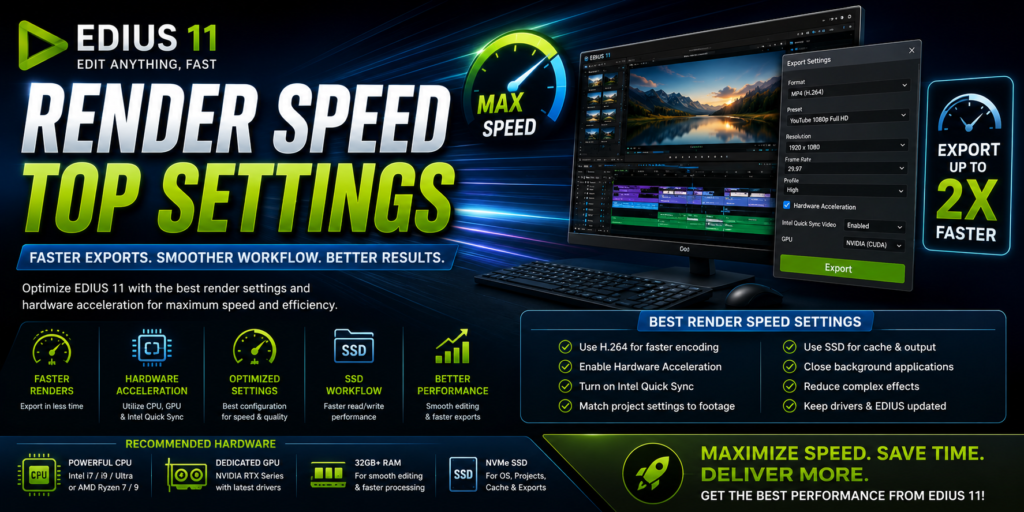
Recommended Fast Export Settings
For YouTube and most online videos, use these settings:
- Format: H.264 MP4
- Resolution: Match source footage
- Frame Rate: Match source
- Hardware Acceleration: Enabled
- Intel Quick Sync: Enabled
- GPU Acceleration: Enabled
- Storage: SSD
Together, these settings provide an excellent balance between rendering speed and video quality.
Best Hardware for Faster Rendering
The following hardware components have the greatest impact on rendering performance.
Processor
Recommended options:
- Intel Core i7
- Intel Core i9
- Intel Core Ultra
- AMD Ryzen 7
- AMD Ryzen 9
Graphics Card
Recommended options:
- NVIDIA RTX Series
- NVIDIA Studio Drivers
- AMD Radeon Professional GPUs
Storage
Recommended:
- NVMe SSD
- PCIe Gen4 SSD
- Dedicated cache SSD
Memory
Recommended:
- 32GB RAM or higher
Additionally, upgrading these components can dramatically improve export performance.
Common Mistakes That Slow Rendering
Avoid these common issues:
- Using outdated GPU drivers
- Rendering from HDD storage
- Running too many background applications
- Installing unsupported plugins
- Exporting to network drives
- Using mismatched project settings
- Having insufficient RAM
By correcting these issues, you can significantly improve rendering speed.
Performance Checklist
Before exporting your project, verify the following:
- EDIUS is updated
- GPU drivers are current
- Hardware acceleration is enabled
- Intel Quick Sync is enabled
- Project settings match the source footage
- SSD storage is being used
- Background applications are closed
- Timeline effects are optimized
Finally, reviewing this checklist before every export helps you achieve the fastest possible rendering performance.
Final Thoughts
Optimizing render speed in EDIUS 11 requires the right combination of export settings, hardware acceleration, efficient storage, and a well-organized editing workflow. By enabling Intel Quick Sync, using GPU acceleration, matching project settings to your source footage, working from SSD storage, and minimizing unnecessary effects, you can dramatically reduce export times while maintaining excellent video quality.
Whether you’re a YouTube creator, wedding filmmaker, broadcaster, content creator, or professional video editor, these proven render speed techniques will help you work more efficiently, deliver projects faster, and get the best possible performance from EDIUS 11.