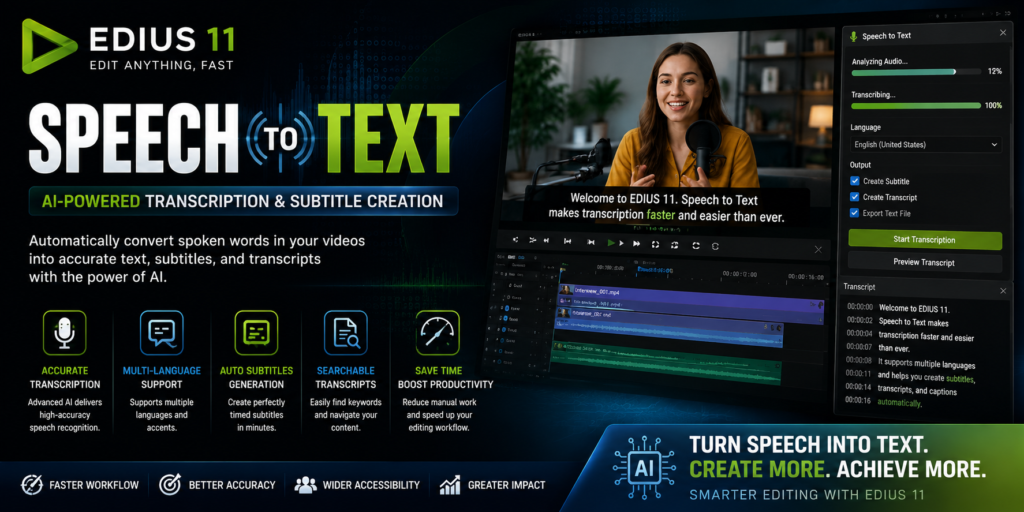

Speech to Text is one of the most valuable AI-powered features available in EDIUS 11. It automatically converts spoken words in your video or audio files into editable text, helping editors create subtitles, captions, transcripts, and searchable content much faster than manual typing.
For content creators, broadcasters, filmmakers, educators, and businesses, Speech to Text can significantly reduce editing time while improving accessibility and workflow efficiency.
What is Speech to Text in EDIUS 11?
Speech to Text is an AI-driven transcription tool that analyzes audio and converts spoken language into text automatically.
Instead of listening to hours of recordings and typing every word manually, EDIUS 11 can generate accurate text within minutes.
The feature is especially useful for:
- Subtitle creation
- Video captions
- Interview transcriptions
- Documentary production
- Educational content
- Corporate videos
Why Speech to Text Matters
Modern video content often requires captions and subtitles for accessibility, engagement, and search engine visibility.
Manual transcription can be:
- Time-consuming
- Expensive
- Error-prone
Speech to Text automates the process and allows editors to focus more on creative work rather than repetitive typing tasks.
Key Features of Speech to Text in EDIUS 11
Automatic Audio Transcription
The AI engine listens to spoken content and converts it into text automatically.
Benefits include:
- Faster workflow
- Reduced manual effort
- Improved productivity
Editors can generate transcripts in a fraction of the time required for manual transcription.
Multi-Language Support
Speech to Text supports a wide range of languages, making it suitable for international projects.
This is particularly useful for:
- Global content creators
- Educational institutions
- Broadcasters
- Multinational organizations
Subtitle Generation
One of the most popular uses of Speech to Text is automatic subtitle creation.
The system can:
- Generate subtitle text
- Synchronize timing
- Reduce manual editing work
- Improve viewer accessibility
Editable Transcripts
After transcription, users can review and edit the generated text.
This allows editors to:
- Correct names
- Fix pronunciation errors
- Adjust punctuation
- Improve overall accuracy
Searchable Content
Text-based transcripts make video content easier to search and organize.
Editors can quickly locate specific words or phrases without manually reviewing hours of footage.
AI-Powered Accuracy
Advanced speech recognition algorithms improve transcription quality by understanding:
- Natural speech patterns
- Different accents
- Conversational language
- Multiple speakers
The result is a more reliable transcription experience.
Benefits of Speech to Text
Saves Time
Manual transcription can take several hours for even short videos.
Speech to Text can reduce transcription time dramatically and accelerate project completion.
Improves Accessibility
Captions and subtitles make videos accessible to:
- Hearing-impaired viewers
- Non-native speakers
- Viewers watching without sound
This helps content reach a wider audience.
Enhances SEO Performance
Search engines cannot watch videos, but they can read text.
Adding transcripts and captions can improve:
- Search visibility
- Keyword relevance
- Content discoverability
Increases Viewer Engagement
Many users watch videos on mobile devices with sound disabled.
Captions help maintain engagement and improve content retention.
Supports Global Audiences
Transcripts can be translated into multiple languages, making content accessible worldwide.
How to Use Speech to Text in EDIUS 11
Step 1: Import Your Media
Add your video or audio file to the EDIUS timeline.
Step 2: Open Speech to Text
Access the Speech to Text feature from the available AI tools within EDIUS.
Step 3: Select Language
Choose the language spoken in the recording.
Selecting the correct language improves recognition accuracy.
Step 4: Start Transcription
Begin the transcription process and allow the AI to analyze the audio.
Processing time depends on:
- File length
- System performance
- Audio quality
Step 5: Review Generated Text
Once transcription is complete, review the generated content.
Check for:
- Spelling accuracy
- Speaker names
- Technical terms
- Punctuation
Step 6: Create Subtitles
Convert the transcript into synchronized subtitles if required.
Step 7: Export
Export transcripts, subtitle files, or captioned videos based on project needs.
Best Practices for Accurate Transcription
Use Clear Audio
The better the audio quality, the better the transcription results.
For best accuracy:
- Minimize background noise
- Use quality microphones
- Record in quiet environments
Reduce Overlapping Speech
When multiple speakers talk simultaneously, transcription accuracy may decrease.
Try to keep conversations clear and structured.
Verify Technical Terms
Industry-specific terminology may require manual correction after transcription.
Review Before Publishing
Always proofread transcripts and subtitles before final delivery.
Even advanced AI systems can occasionally misinterpret words.
Common Use Cases
YouTube Videos
Creators can quickly generate captions and improve accessibility.
Interviews
Transcribe interviews for editing, archiving, and content repurposing.
Podcasts
Convert spoken conversations into written articles or blog content.
Online Courses
Generate subtitles and transcripts for educational material.
Corporate Communications
Create meeting transcripts and training materials efficiently.
Documentary Production
Speed up the process of organizing interviews and narrative content.
Tips to Improve Speech Recognition Accuracy
- Record high-quality audio
- Use external microphones
- Minimize background noise
- Speak clearly and naturally
- Select the correct language
- Review transcripts after generation
- Update EDIUS regularly
These simple practices can significantly improve transcription quality.
Advantages of Speech to Text in EDIUS 11
| Feature | Benefit |
|---|---|
| Automatic Transcription | Saves hours of manual work |
| Subtitle Creation | Faster caption generation |
| Multi-Language Support | Suitable for global audiences |
| Searchable Transcripts | Easier content organization |
| AI Recognition | Improved accuracy |
| Accessibility Support | Better audience reach |
Who Should Use Speech to Text?
YouTube Creators
- Generate captions quickly
- Improve viewer engagement
- Enhance SEO performance
Filmmakers
- Organize interviews
- Create subtitles
- Improve post-production workflow
Broadcasters
- Speed up newsroom production
- Create captions efficiently
- Improve accessibility compliance
Educators
- Provide learning transcripts
- Support multilingual audiences
- Improve content accessibility
Businesses
- Transcribe meetings
- Create training resources
- Improve communication workflows
Final Thoughts
Speech to Text in EDIUS 11 is a powerful AI-driven feature that transforms audio and video recordings into accurate, editable text. From automatic subtitle generation to searchable transcripts and accessibility improvements, it helps editors work faster and deliver professional results. Whether you’re a content creator, filmmaker, educator, broadcaster, or business professional, Speech to Text can streamline your workflow and significantly reduce the time spent on manual transcription.