
Creating a professional wedding album can take considerable time when every photo, frame, text element, and page is edited manually. However, Delux Editor shortcuts can help designers work faster by reducing repetitive mouse movements and unnecessary menu navigation. When shortcuts are combined with templates, Auto Album, AI tools, and Photoshop integration, the entire album creation process becomes more efficient.
For wedding photographers and professional album designers, saving a few seconds on individual tasks can make a major difference across an entire project. Therefore, learning the right keyboard commands is a simple way to improve productivity without sacrificing creativity or design quality.
6
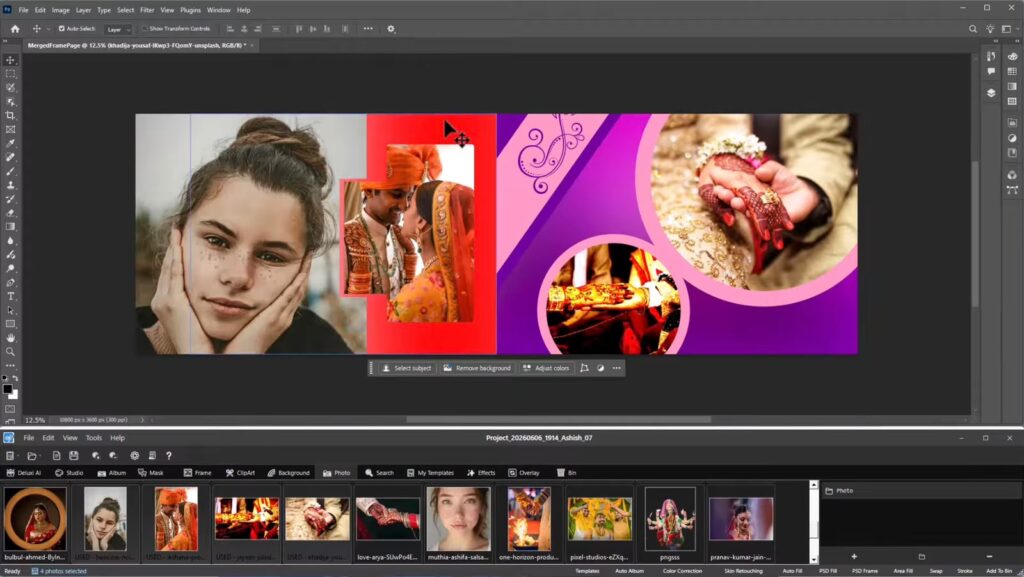
Suggested image alt text: Delux Editor shortcuts for fast wedding album layout creation
Why Delux Editor Shortcuts Are Useful for Album Designers
Wedding album projects often contain dozens of pages and hundreds of photographs. As a result, designers frequently repeat the same actions while creating layouts.
Keyboard commands can make these repetitive tasks quicker. In addition, they help designers maintain a smoother workflow while switching between editing, layout adjustments, and content placement.
The main benefits include:
- Faster editing
- Less mouse movement
- Quicker copying and pasting
- Easier layout adjustments
- Faster page navigation
- More efficient template customization
- Reduced repetitive work
- Better productivity during high-volume projects
Most importantly, shortcuts allow designers to spend more time on creative decisions instead of repetitive interface operations.
Essential Keyboard Commands for Faster Editing
Before learning software-specific commands, it is useful to become comfortable with common Windows editing shortcuts. Many of these commands are widely used across creative applications.
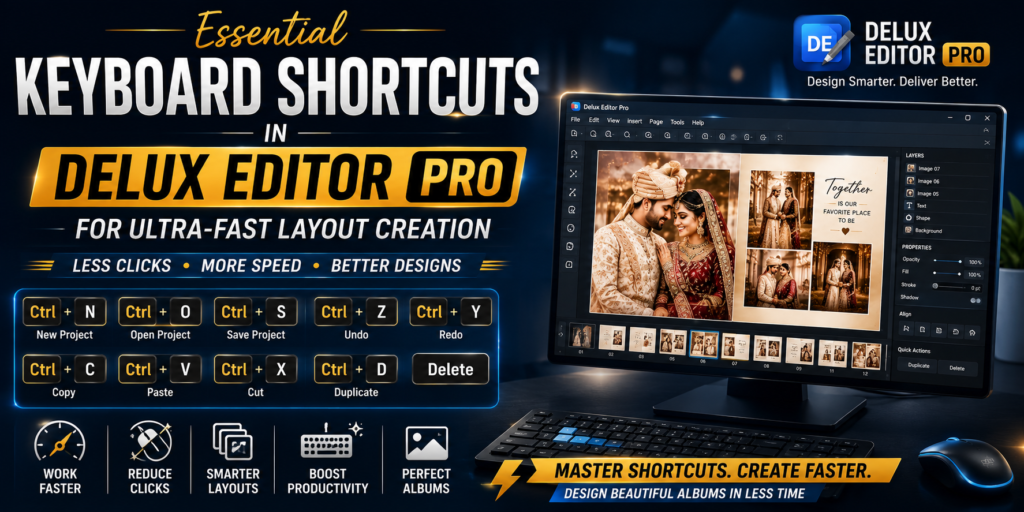
Ctrl + Z — Undo
Made an unwanted change? Ctrl + Z lets you undo the previous action in applications that support the command.
For example, you can use Undo after accidentally moving an image, changing an element, or making an adjustment that does not look right.
Consequently, you can experiment with different layouts without worrying about permanently losing the previous version.
Ctrl + Y — Redo
After undoing an action, Ctrl + Y can be used for Redo where supported.
This is particularly useful when comparing two versions of a layout. You can make an adjustment, undo it, and then restore it when necessary.
Ctrl + C — Copy
Use Ctrl + C to copy a selected element when the application supports standard copy functionality.
This can be useful for repeated design elements such as text blocks, decorative objects, or other reusable content.
Ctrl + V — Paste
After copying an element, use Ctrl + V to paste it.
For example, a designer might reuse a similar design element on multiple album pages. Therefore, copying can be much faster than recreating the same element from scratch.
Ctrl + X — Cut
Ctrl + X removes selected content while keeping it available for pasting.
This is useful when an element needs to be moved from one location to another.
Ctrl + S — Save
Saving regularly is one of the simplest ways to protect your work.
Use Ctrl + S where supported, especially after completing important sections of an album. Furthermore, regular saving reduces the risk of losing progress because of unexpected software or system issues.
Delux Editor Shortcuts and Faster Album Layouts
The real advantage of keyboard commands appears when they are combined with a structured album workflow.
Instead of designing every page from scratch, start with a suitable template. Then, import the photographs and arrange the content. After that, use editing commands to refine the page.
A practical workflow looks like this:
Choose Template → Import Photos → Create Layout → Edit → Review → Customize → Export
This approach reduces unnecessary repetition. Moreover, it gives designers more time to focus on composition, storytelling, and image selection.
6
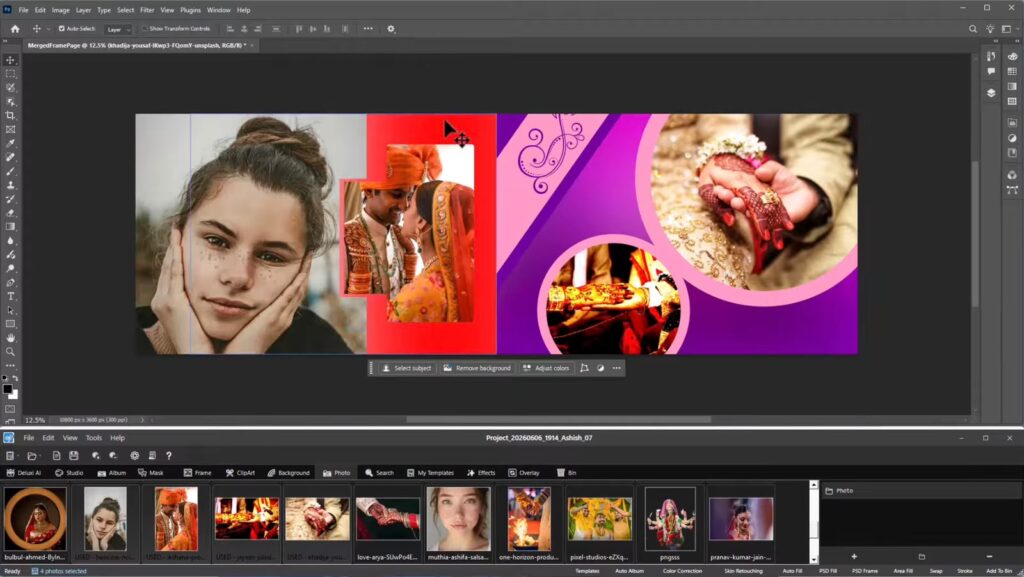
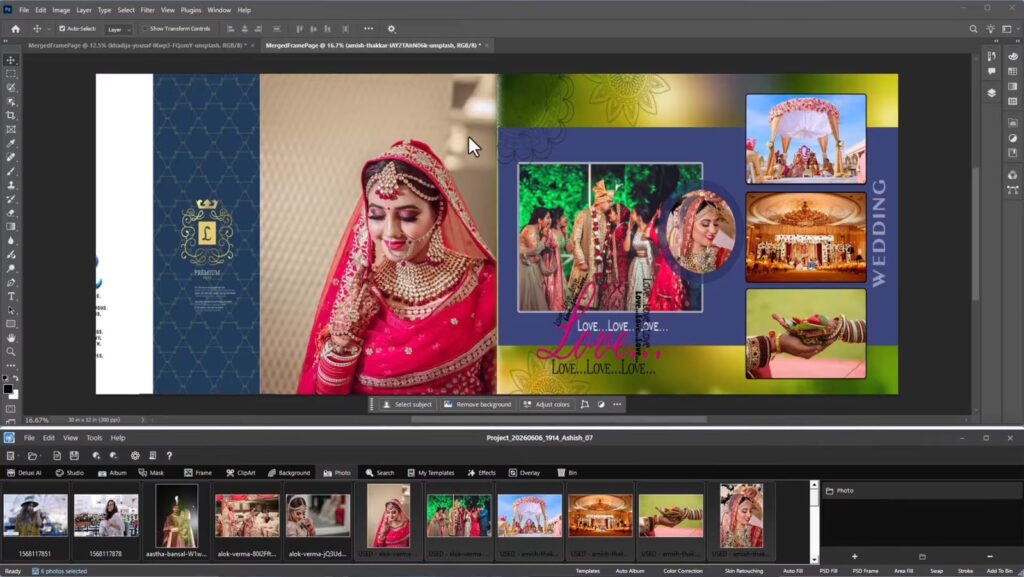
Suggested image alt text: Delux Editor Pro shortcuts for wedding album template design
Speed Up Repetitive Album Design Tasks
Wedding albums often contain repeated elements. Names, dates, decorative graphics, logos, borders, and other design components may appear across multiple pages.
Instead of rebuilding these elements repeatedly, create a polished version first. Then, reuse it whenever appropriate.
For example:
- Create the first design element.
- Adjust its size and position.
- Check its typography and spacing.
- Copy it when another page needs the same element.
- Paste it into the new layout.
- Make small adjustments if required.
As a result, the album can maintain a consistent visual identity while reducing repetitive work.
Use Templates for Faster Wedding Album Creation
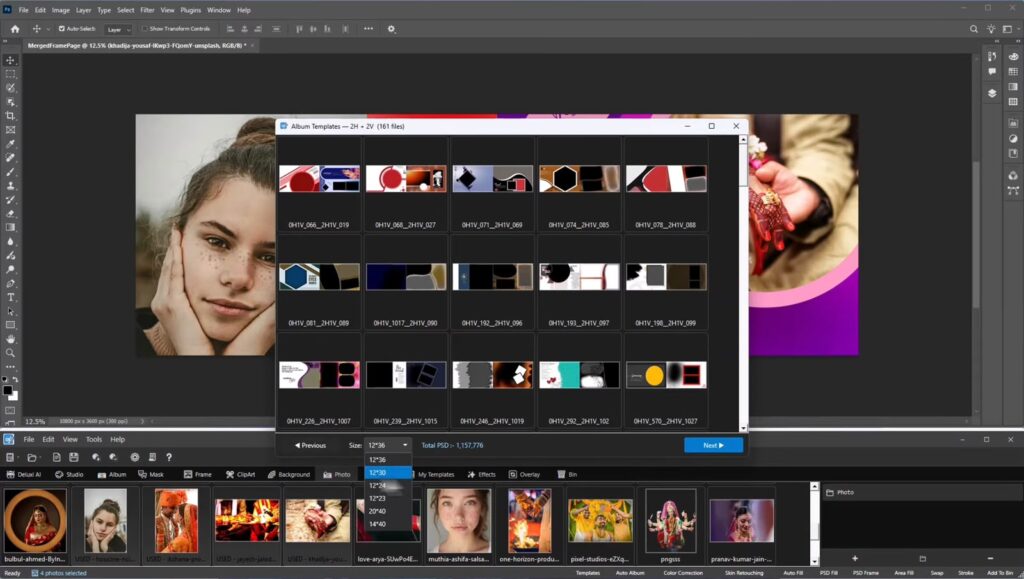
Templates are particularly useful for photographers who regularly create wedding albums.
A professionally prepared template provides an initial structure for photographs, text, and decorative elements. Consequently, designers can concentrate on customizing the page rather than starting with a blank workspace.
You can explore the official Delux Editor website here:
When selecting a template, consider:
- Number of photographs
- Image orientation
- Couple portraits
- Group photographs
- Available text space
- Background style
- Overall album theme
Furthermore, choosing the right template early can reduce the amount of repositioning required later.
Combine Shortcuts With Auto Album
Automation can make a major difference when creating large wedding albums.
If Auto Album is available in your Delux Editor Pro workflow, it can provide a starting arrangement for your photographs. You can then review the generated pages and make creative adjustments.
The process can be organized as follows:
Import Photos → Select Template → Generate Initial Album → Review → Customize → Finalize
After the initial layout is created, keyboard commands can help speed up repetitive adjustments.
This combination is especially useful for studios that handle several albums every month. Instead of spending most of the project manually placing every image, designers can focus their attention on important pages and creative refinements.
Faster Photo Placement and Page Refinement
Photo placement is one of the most time-consuming parts of album design.
A good workflow begins with selecting the strongest photographs for each spread. Next, position the main image and arrange supporting photographs around it.
For example, a wedding couple’s main portrait can become the focal point of a page. Smaller images can then support the story without competing with the main photograph.
Therefore, speed should never come at the expense of composition.
After making quick adjustments, check:
- Image alignment
- Cropping
- White space
- Image hierarchy
- Background balance
- Text placement
- Visual consistency
These checks help ensure that a faster workflow still produces a professional result.
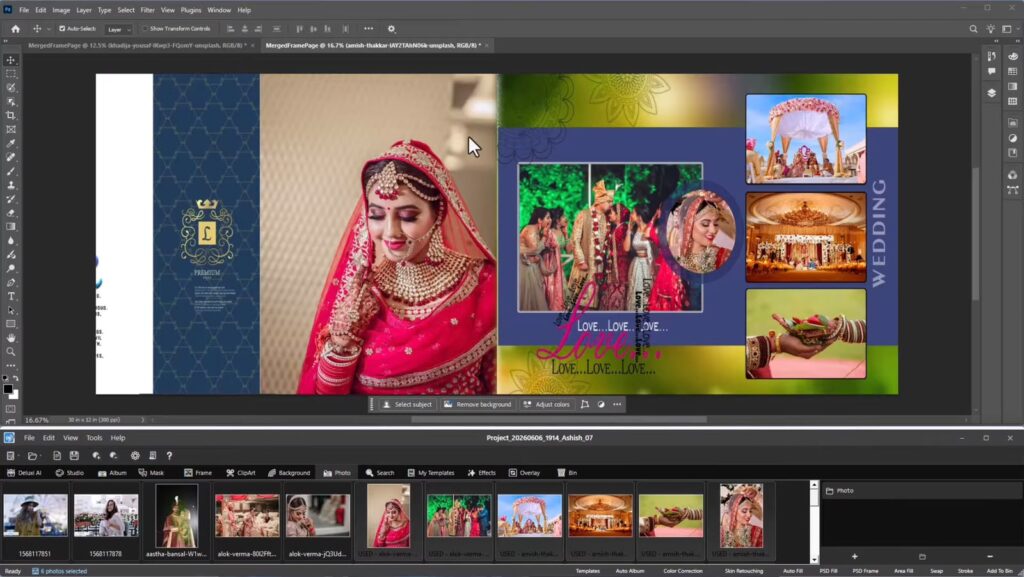
Use Delux Editor Shortcuts With Photoshop
Some photographs require more advanced retouching than basic album editing.
In such cases, Photoshop can be useful for detailed image correction, masking, retouching, and other advanced editing tasks.
Adobe Photoshop official website
A practical workflow can look like this:
Album Layout → Select Photograph → Advanced Editing → Save Image → Return to Album → Finalize Layout
Common Photoshop commands can also speed up retouching. Therefore, photographers who regularly move between Delux Editor Pro and Photoshop can benefit from learning shortcuts in both applications.
Build a Personal Shortcut Cheat Sheet
You do not need to memorize dozens of keyboard commands immediately.
Instead, start with the commands you use most frequently.
| Action | Common Shortcut |
|---|---|
| Undo | Ctrl + Z |
| Redo | Ctrl + Y |
| Copy | Ctrl + C |
| Paste | Ctrl + V |
| Cut | Ctrl + X |
| Save | Ctrl + S |
| Select All | Ctrl + A |
Note: The exact shortcut behavior can vary depending on the software version, selected tool, operating system, and current editing mode. Therefore, verify any Delux Editor Pro-specific keyboard commands in your installed version.
Once the basic commands become natural, you can gradually add more application-specific shortcuts to your workflow.
Delux Editor Shortcuts for High-Volume Studios
High-volume wedding studios can benefit significantly from a faster design process.
Imagine completing multiple albums every month. Each project contains many repeated actions, from photo placement to page refinement. Even small delays can become substantial when repeated hundreds of times.
A more efficient workflow combines:
- Ready-made templates
- Automated album creation
- Keyboard commands
- AI-powered editing tools
- Photoshop integration
- Reusable design elements
- Consistent export settings
Consequently, designers can reduce repetitive work while maintaining control over the final design.
The goal is not simply to create albums faster. Instead, the goal is to create a workflow that is faster, consistent, and easier to manage.
Avoid These Common Keyboard Shortcut Mistakes
Keyboard commands can improve productivity, but they should be used carefully.
1. Trying to Memorize Everything
Learning too many commands at once can become confusing.
Start with five or six frequently used commands. Then, add new ones as your workflow develops.
2. Forgetting to Save
Fast editing does not eliminate the need for regular saving.
Use Ctrl + S when supported and save important project versions throughout the design process.
3. Relying Only on Speed
A fast workflow does not automatically create a beautiful album.
Always check composition, image quality, spacing, typography, and visual balance.
4. Skipping the Final Review
Before exporting, inspect every page carefully.
Look for:
- Incorrect cropping
- Misaligned images
- Missing photographs
- Text mistakes
- Uneven spacing
- Low-resolution images
- Unwanted design elements
Finally, review the complete album from beginning to end before sending it for print.
A Fast Wedding Album Workflow
Here is a practical workflow you can follow for your next project.
Step 1: Organize Your Photographs
Separate photographs according to wedding events such as engagement, Mehendi, Haldi, ceremony, reception, portraits, and family sessions.
Step 2: Select the Best Images
Remove duplicates and blurry photographs before importing them into the album project.
Step 3: Choose a Template
Select a design that matches the number and orientation of your photographs.
Step 4: Import the Photos
Bring the selected photographs into your project and begin arranging the album.
Step 5: Generate the Initial Layout
Use available automation features to create a starting layout when appropriate.
Step 6: Refine the Important Pages
Give extra attention to the couple’s portraits, ceremony highlights, family spreads, and album cover.
Step 7: Use Keyboard Commands
Use familiar editing commands for copying, pasting, undoing, redoing, saving, and other supported actions.
Step 8: Retouch Key Photographs
Use built-in editing features or Photoshop when a photograph requires advanced correction.
Step 9: Check Every Page
Review alignment, spacing, typography, cropping, and image quality.
Step 10: Export the Album
Finally, export the completed project using the appropriate settings for your printing workflow.
How to Improve Your Album Design Speed
Speed improves naturally with repetition. However, a structured process can accelerate that improvement.
Start by identifying the tasks you repeat most often. Next, determine which tasks can be handled with templates or automation. Afterward, identify the keyboard commands that can reduce unnecessary mouse movement.
For example:
Repetitive task → Find faster command → Practice → Add to workflow → Repeat
Over time, these small improvements become habits.
Moreover, designers should regularly review their workflow. If a task is taking too long, look for a better method rather than simply working faster.
Combine Automation, Templates, and Shortcuts
The biggest productivity improvement comes from combining several tools instead of relying on one feature.
A modern album workflow might look like this:
Templates provide the initial design.
Automation helps create repetitive layouts.
AI tools can assist with selected editing tasks.
Keyboard commands speed up everyday operations.
Photoshop handles advanced image editing.
Final review ensures professional quality.
Together, these methods create a more streamlined album production process.
For more information about Delux Editor Pro and its workflow, visit:
Final Thoughts
Learning Delux Editor shortcuts is a simple but effective way to improve your wedding album design workflow. However, shortcuts work best when they are combined with templates, automation, organized photographs, and a consistent editing process.
Instead of spending hours repeating the same basic operations, designers can use that time for more important creative decisions. In addition, a faster workflow can help studios handle more projects while maintaining consistent design quality.
Start with a few commonly used commands, practice them regularly, and gradually build your own keyboard-driven workflow. Once these actions become natural, album design can feel considerably faster and more organized.
Most importantly, remember that productivity is not only about speed. The best workflow is one that helps you create beautiful, consistent, print-ready wedding albums efficiently.