
Introduction
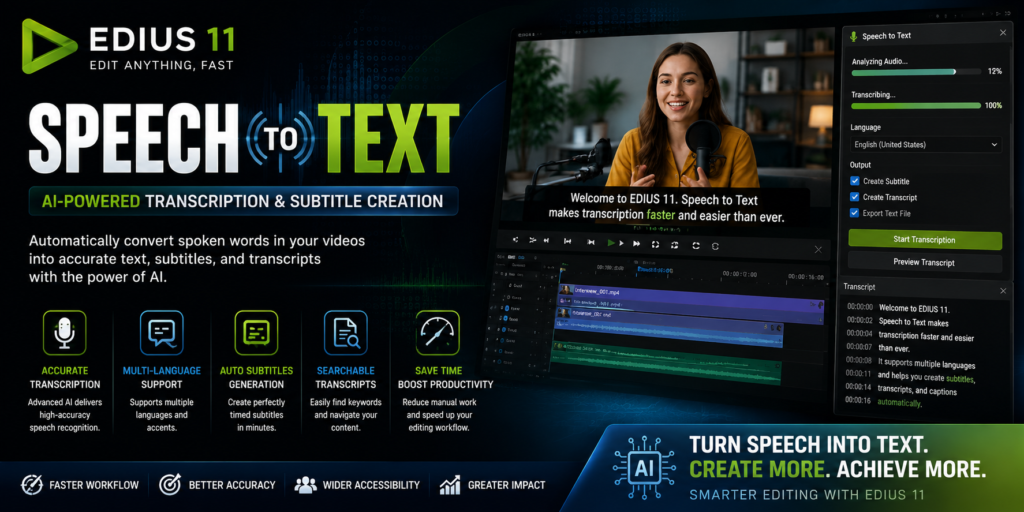
Speech to Text in EDIUS 11 is one of the most powerful AI-powered features for modern video editing. It automatically converts spoken words from video or audio files into editable text, making it much easier to create subtitles, captions, transcripts, and searchable content. As a result, editors can complete transcription tasks much faster than manual typing. Moreover, this intelligent feature improves accessibility, enhances productivity, and simplifies post-production workflows. Whether you’re a content creator, broadcaster, filmmaker, educator, or business professional, this AI transcription feature helps deliver projects more efficiently.
What Is the AI Transcription Feature?
The Speech to Text in EDIUS 11 feature uses artificial intelligence to analyze spoken audio and convert it into editable text automatically. Instead of listening to lengthy recordings and typing every word manually, EDIUS 11 generates transcripts within minutes. Consequently, editors spend more time refining their projects and less time handling repetitive transcription tasks.
Furthermore, the feature supports various production workflows, including:
- Subtitle creation
- Interview transcription
- Documentary editing
- Educational videos
- Corporate presentations
- Podcast transcription
Why Use AI Transcription?
Modern video content requires captions and subtitles to improve accessibility, audience engagement, and SEO. However, manual transcription is slow, expensive, and often inaccurate. Fortunately, the AI-powered transcription tool automates the process while maintaining impressive accuracy.
Key advantages include:
- Faster editing workflows
- Automatic subtitle generation
- Improved accessibility
- Searchable transcripts
- Better content organization
- Reduced production costs
Automatic Audio Transcription
One of the biggest strengths of this voice-to-text feature is automatic audio transcription. The AI engine detects spoken dialogue and converts it into editable text with minimal user interaction.
As a result, editors save hours of manual work while producing professional-quality transcripts for every project.
Multi-Language Support
Another important advantage is multi-language recognition. Since the AI supports multiple languages, it is suitable for international productions, educational institutions, broadcasters, and businesses.
Additionally, selecting the correct language before transcription significantly improves recognition accuracy.
Automatic Subtitle Creation
After transcription is complete, the software can quickly generate synchronized subtitles.
Therefore, editors no longer need to create captions manually. Moreover, subtitles improve accessibility for hearing-impaired viewers while increasing engagement among users who watch videos without sound.
Editable AI Transcripts
Although AI transcription is highly accurate, every transcript remains fully editable.
Editors can:
- Correct names
- Fix punctuation
- Adjust technical terminology
- Modify spelling
- Improve formatting
Consequently, the final transcript meets professional publishing standards.
Search Video Content Faster
A major productivity benefit of the transcription tool is searchable transcripts.
Instead of reviewing hours of footage manually, editors can simply search specific words or phrases inside the transcript. As a result, locating important scenes becomes dramatically faster.
AI Speech Recognition Accuracy
The advanced speech recognition engine understands natural conversations, different accents, and multiple speakers.
Although the results are highly accurate, reviewing transcripts before publishing is still recommended to eliminate occasional recognition errors.
Benefits of the AI Transcription Feature
Using Speech to Text in EDIUS 11 offers numerous advantages:
- Saves hours of transcription work
- Speeds up video editing
- Improves accessibility
- Creates subtitles automatically
- Enhances SEO through captions
- Produces searchable transcripts
- Improves workflow efficiency
- Reduces production costs
- Increases viewer engagement
How to Use the Transcription Tool
Using Speech to Text in EDIUS 11 is straightforward.
- Import your video or audio into the timeline.
- Open the Speech to Text panel.
- Choose the spoken language.
- Start AI transcription.
- Wait for the transcript to finish.
- Review and edit the generated text.
- Export the transcript or create subtitles.
Best Practices for Accurate Transcription
For the highest transcription accuracy:
- Record clean audio.
- Use an external microphone.
- Reduce background noise.
- Avoid overlapping conversations.
- Speak clearly.
- Select the correct language.
- Proofread the transcript before exporting.
Following these recommendations helps the speech recognition tool deliver the most accurate results possible.
Who Should Use This Feature?
This AI-powered feature is ideal for:
- YouTubers
- Wedding video editors
- Documentary filmmakers
- Broadcasters
- Journalists
- Podcast creators
- Online educators
- Corporate trainers
- Marketing teams
- Business professionals
Common Use Cases
Professionals use Speech to Text in EDIUS 11 for many different purposes.
For example:
- Creating YouTube captions
- Documentary interview transcription
- Online course subtitles
- Corporate meeting transcripts
- Podcast transcripts
- Newsroom production
- Wedding video subtitles
- Social media captions
Final Thoughts
Speech to Text in EDIUS 11 is one of the most valuable AI-powered features available for professional video editing. It automatically converts spoken audio into editable text, making subtitle creation, transcription, and content organization significantly easier.
Furthermore, searchable transcripts improve workflow efficiency, while captions enhance accessibility and SEO. Whether you’re producing YouTube videos, documentaries, educational content, podcasts, or corporate presentations, this voice-to-text solution helps reduce manual work, save valuable time, and deliver professional results more efficiently.