
Introduction
EDIUS 11 is one of the most reliable professional video editing applications available today. However, like any advanced software, it may occasionally freeze, hang, or display a “Not Responding” message. When this happens, editing sessions can be interrupted, projects may slow down, and users often worry about losing their work. Fortunately, most EDIUS 11 not responding issues can be resolved by following a few simple troubleshooting steps. In this guide, you’ll learn the most common causes of the problem, practical solutions to fix it, and preventive measures that will help keep your editing workflow running smoothly.
Why Does EDIUS 11 Stop Responding?
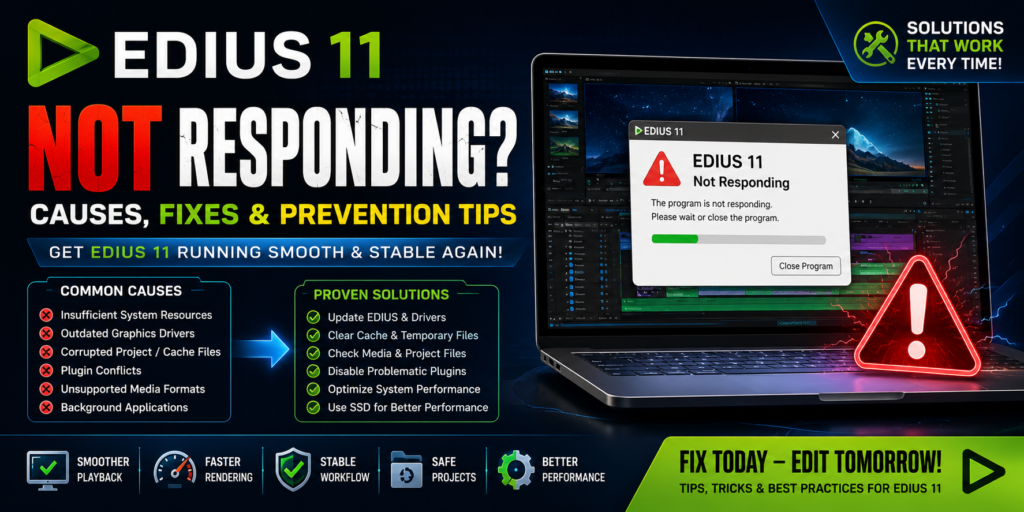
Several factors can cause EDIUS 11 to become unresponsive. For example, insufficient system resources, outdated graphics drivers, corrupted project files, damaged cache data, plugin conflicts, unsupported media formats, background applications, and slow storage devices can all affect software stability. As a result, EDIUS may freeze during startup, timeline playback, rendering, exporting, or even while saving a project. Therefore, identifying the root cause is the first step toward resolving the issue effectively.
Check Your System Requirements
Before trying advanced troubleshooting methods, make sure your computer meets the recommended system requirements for EDIUS 11. Ideally, your system should include a modern Intel Core i7, Core i9, or equivalent processor, at least 16 GB of RAM, a dedicated NVIDIA or AMD graphics card, SSD storage, and the latest version of Windows. If your hardware falls below these recommendations, EDIUS may struggle with demanding editing tasks. Consequently, upgrading your hardware can significantly improve both stability and performance.
Restart EDIUS and Your Computer
Sometimes the simplest solution is also the most effective. First, close EDIUS completely using Task Manager if it has stopped responding. Next, restart your computer to clear temporary memory issues and reset background processes. Afterward, launch EDIUS again and reopen your project. In many cases, a simple restart resolves temporary software conflicts without requiring additional troubleshooting.
Update EDIUS 11
Keeping EDIUS 11 updated is essential for maintaining stability. Because software updates often include bug fixes, performance improvements, and compatibility enhancements, installing the latest version can resolve many freezing issues. Therefore, always download updates from the official EDIUS development team to ensure maximum reliability.
Update Graphics Drivers
Outdated graphics drivers are another common cause of software instability. To prevent compatibility issues, visit your GPU manufacturer’s website and download the latest certified driver. After installing the update, restart your computer before launching EDIUS again. As a result, playback, rendering, and GPU acceleration should perform more reliably.
Clear Cache Files
Over time, EDIUS creates temporary cache and render files that may eventually become corrupted. Consequently, the software may experience slow playback, startup delays, rendering errors, or unexpected freezing. Fortunately, clearing the cache allows EDIUS to rebuild these files automatically. Once the process is complete, reopen your project and check whether the issue has been resolved.
Disable Third-Party Plugins
Third-party plugins can sometimes conflict with EDIUS 11. If the problem started after installing a new plugin, temporarily disable it and restart the software. Then, test EDIUS without optional extensions enabled. If the application runs normally, re-enable each plugin one at a time until you identify the conflicting extension. This approach makes troubleshooting much easier.
Check Your Media Files
Damaged or unsupported media files can also cause EDIUS to stop responding. For example, if the software freezes at the same timeline position every time, a specific clip may be corrupted. In that case, remove the suspected media, import it again, or convert it into a supported format. By doing so, you can determine whether the issue is related to the footage itself rather than the software.
Free Up System Resources
Video editing requires substantial processing power. Therefore, close unnecessary background applications such as web browsers, cloud synchronization tools, streaming software, and game launchers before editing. As a result, EDIUS will have access to more CPU, memory, and storage resources, leading to smoother performance and fewer freezes.
Move Projects to SSD Storage
Storage speed has a significant impact on editing performance. If your projects are stored on a slow hard drive, loading times and timeline responsiveness may suffer. Instead, store your project files, media cache, and working files on a fast SSD. Additionally, maintain sufficient free disk space because nearly full drives can also reduce performance. Overall, SSD storage dramatically improves editing efficiency.
Create a New Project and Import the Timeline
Occasionally, the project itself becomes corrupted. Fortunately, creating a new project and importing the existing timeline often resolves this problem. After importing the sequence, save the project under a different name and test it thoroughly. If everything works correctly, the original project file was likely damaged.
Check Windows Event Viewer
For advanced troubleshooting, Windows Event Viewer can provide valuable information. Specifically, look for application crashes, driver failures, hardware warnings, or memory-related errors. By reviewing these logs, you may discover the exact reason why EDIUS stopped responding. Consequently, troubleshooting becomes much more targeted.
Scan for Hardware Problems
Software isn’t always responsible for freezing issues. Sometimes, faulty hardware is the real cause. Therefore, check your RAM, SSD health, CPU temperature, GPU temperature, and power supply stability. If any component is overheating or failing, replacing it can restore system reliability and prevent future crashes.
Reinstall EDIUS 11
If none of the previous solutions solve the problem, consider performing a clean reinstallation. Before uninstalling EDIUS, back up your projects, presets, and custom settings. Next, remove the software completely, restart Windows, and install the latest version from the official installer. Finally, restore your projects and verify that everything functions correctly. Although this takes a little longer, it often resolves persistent software corruption.
How to Prevent EDIUS 11 from Freezing
Preventive maintenance is just as important as troubleshooting. First, keep EDIUS and your graphics drivers updated. Next, use SSD storage for projects and cache files while maintaining sufficient free disk space. Additionally, avoid installing unnecessary plugins and clear cache files periodically. Finally, back up your projects regularly and work with supported media formats whenever possible. By following these best practices, you can significantly reduce crashes and maintain a stable editing environment.
Final Thoughts
Experiencing an EDIUS 11 Not Responding error can be frustrating, especially when you’re working on important projects. Fortunately, most freezing issues are caused by software conflicts, outdated drivers, damaged cache files, unsupported media, or limited system resources. By systematically following the troubleshooting methods outlined above, you can identify the root cause and restore normal performance. More importantly, regular software updates, proper system maintenance, and optimized hardware will help prevent similar problems in the future. Ultimately, a well-maintained system ensures that EDIUS 11 remains fast, stable, and reliable for every editing project.