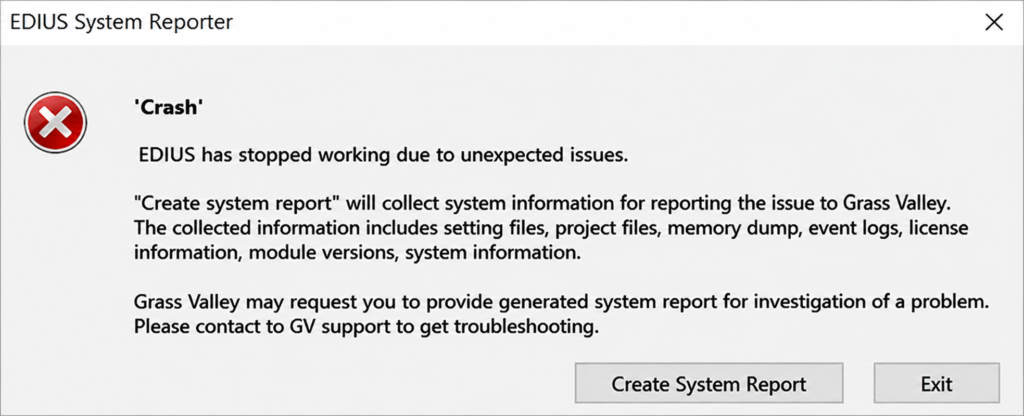

EDIUS 11 is a powerful professional video editing software. However, users may sometimes face freezing, lagging, unexpected closing, or crashing issues while editing or exporting projects. These problems are usually caused by outdated drivers, incorrect settings, damaged cache files, unsupported plugins, codec problems, or hardware limitations. In this guide, we will cover the most common reasons why EDIUS 11 freezes or crashes and consequently how to fix them step by step.
Common Reasons Why EDIUS 11 Freezes or Crashes
Before applying these solutions, first it is crucial to understand the potential causes; furthermore, consider these factors:
- Outdated GPU graphics driver
- Corrupted EDIUS settings or cache
- Unsupported video codec or damaged media files
- Third-party plugin conflicts
- Insufficient RAM or storage
- Windows update compatibility issues
- Incorrect project settings
- Hardware acceleration problems
- Antivirus software blocking EDIUS files
Solution 1: Update Your Graphics Driver
EDIUS uses GPU acceleration for better performance; therefore, an outdated graphics driver can cause frequent freezing or crashes.
For NVIDIA GPU:
- Open NVIDIA GeForce Experience.
- Check for driver updates.
- Install the latest Studio Driver.
- Finally, restart your computer.
For AMD / Intel: Download and install the latest driver from the official manufacturer website. Afterward, open EDIUS to verify if performance has improved.
Solution 2: Clear EDIUS Temporary Files
Corrupted temporary files can create stability problems. To resolve this, take the following steps:
- Close EDIUS.
- Press
Windows + R. - Type
%temp%and press Enter. - Delete the unnecessary temporary files.
- Subsequently, restart your system. As a result, this removes old cache files and improves overall stability.
Solution 3: Reset EDIUS User Settings
Wrong settings can often make EDIUS unstable. As a result, you may need to reset your profile:
- Close EDIUS.
- Open the EDIUS settings folder.
- Rename the current user settings folder.
- Restart EDIUS. Thereafter, the software will create fresh default settings automatically.
Solution 4: Disable Third-Party Plugins
Some external plugins may conflict with EDIUS, particularly effects, transitions, color grading, or audio plugins. To test this, follow these steps:
- Disable any recently installed plugins.
- Open EDIUS.
- Check if the crashing stops. In addition, if the software works normally, then one of those plugins is likely causing the issue.
Solution 5: Convert Unsupported Video Files
Some video formats create editing problems, such as variable frame rate videos or unsupported codecs. Consequently, you should convert videos to editing-friendly formats like HQX, ProRes, or Constant Frame Rate MP4 before importing them into EDIUS. By doing this, you prevent potential compatibility issues.
Solution 6: Turn Off GPU Acceleration Temporarily
If crashes happen during playback or export, GPU acceleration may be the reason. In this case, try these steps:
- Open EDIUS.
- Go to Settings > System Settings.
- Locate the hardware acceleration options.
- Disable GPU acceleration.
- Afterward, restart EDIUS and test your project again.
Solution 7: Check Storage Space
Low disk space can freeze EDIUS. Therefore, we recommend the following:
- Keep a minimum of 20% free space on your drive.
- Use an SSD for project files.
- Avoid editing directly from slow external drives.
- Furthermore, clean unnecessary files regularly.
Solution 8: Update EDIUS 11
Always use the latest available version. Updates include bug fixes, stability improvements, codec support, and performance optimizations. Moreover, you should install the latest update and restart your computer to apply the changes.
EDIUS 11 freezing or crashing is usually caused by driver issues, corrupted settings, unsupported media files, plugins, or system limitations. Ultimately, by following the troubleshooting methods above, most users can successfully restore stable performance and continue professional video editing without further interruptions.