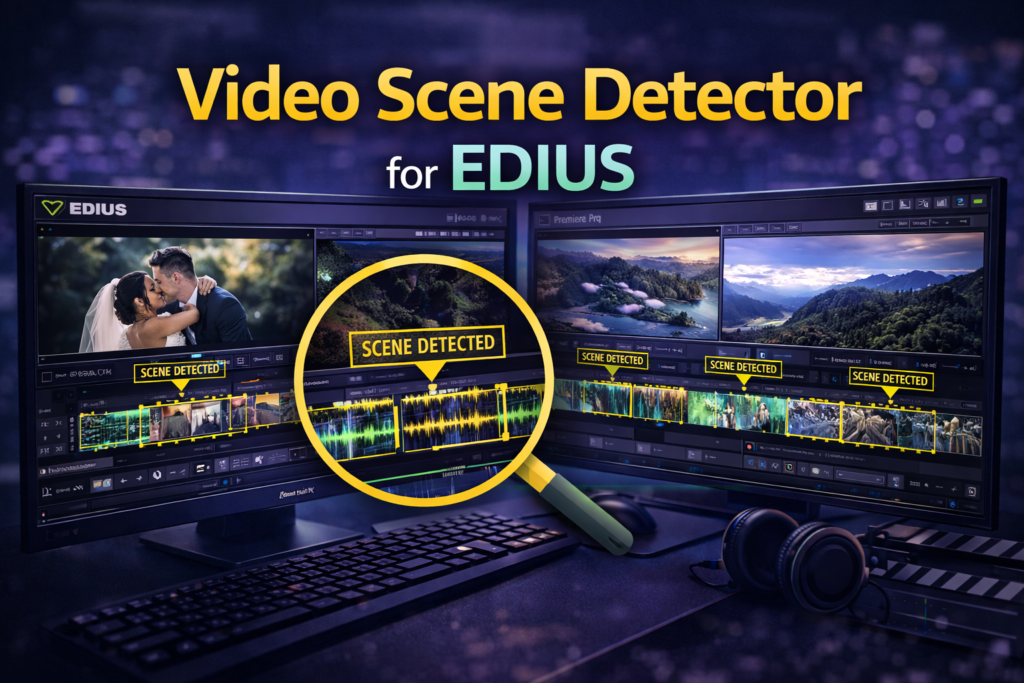

Video Scene Detector for EDIUS – Complete Guide
Video editing often involves working with long, uncut footage. However, manually finding scene changes can be time-consuming. This is where the Video Scene Detector for EDIUS becomes essential.
This powerful EDIUS readymade project automatically detects scene changes and splits clips into clean segments. As a result, editors save time, reduce errors, and improve workflow efficiency.
Moreover, whether you edit weddings, events, films, or YouTube videos, this tool simplifies the entire editing process.
What Is Video Scene Detector for EDIUS?
The Video Scene Detector for EDIUS is a smart tool designed to analyze video footage and identify scene transitions automatically. Instead of scrubbing frame by frame, editors can instantly break long clips into separate scenes.
Therefore, it is ideal for editors who handle:
- Wedding videos
- Event recordings
- Interviews
- Documentary footage
- Long camera takes
This solution works seamlessly inside EDIUS, maintaining timeline accuracy and video quality.
Why Scene Detection Matters in Video Editing
Scene detection plays a crucial role in professional editing. Without it, editors spend hours manually cutting footage.
Key Problems Without Scene Detection
- Time wasted on manual cuts
- Missed scene changes
- Inconsistent clip segmentation
- Slower project delivery
However, automatic scene detection solves these issues efficiently.
Key Features of Video Scene Detector for EDIUS
The Video Scene Detector for EDIUS offers a range of practical features designed for real-world editing.
Automatic Scene Detection
The tool scans video files and detects:
- Camera cuts
- Angle changes
- Lighting changes
- Visual transitions
As a result, scenes are split accurately without manual effort.
One-Click Clip Separation
With a single action, long footage is divided into multiple clips on the EDIUS timeline. This improves speed and organization.
Non-Destructive Workflow
Original footage remains untouched. The detector only creates timeline cuts, ensuring full editing flexibility.
EDIUS-Optimized Performance
Because it is built for EDIUS, performance remains smooth even with high-resolution footage.
How Video Scene Detector for EDIUS Works
Understanding the workflow helps editors use the tool effectively.
Step-by-Step Workflow
- Import raw footage into EDIUS
- Apply the Video Scene Detector
- Analyze the clip
- Automatically generate scene cuts
- Begin creative editing
Therefore, even beginners can use this tool without a learning curve.
Real-World Use Cases
Wedding Video Editing
Wedding videographers often record hours of footage. The scene detector helps separate:
- Ceremony moments
- Rituals
- Guest reactions
- Dance performances
As a result, editing becomes faster and more structured.
Event Coverage
For seminars or stage shows, the tool detects:
- Speaker changes
- Slide transitions
- Camera switches
This ensures a clean timeline.
YouTube Content Creation
Creators can quickly split long recordings into:
- Intro
- Main segments
- Outros
Therefore, content production speeds up significantly.
Benefits of Using Video Scene Detector for EDIUS
| Benefit | Description |
|---|---|
| Time Saving | Reduces manual cutting |
| Accuracy | Detects precise scene changes |
| Productivity | Faster project completion |
| Beginner Friendly | Simple workflow |
| Professional Output | Clean timelines |
Moreover, editors can focus more on storytelling instead of technical work.
Why Choose an EDIUS Readymade Project?
An EDIUS readymade project offers pre-configured settings and optimized workflows. Therefore, users do not need advanced technical knowledge.
Advantages
- Plug-and-play setup
- No complex configuration
- Consistent results
- Ideal for freelancers and studios
Comparison – Manual Editing vs Scene Detection
| Aspect | Manual Editing | Video Scene Detector |
|---|---|---|
| Speed | Slow | Fast |
| Accuracy | Depends on editor | Automated |
| Effort | High | Low |
| Consistency | Variable | Consistent |
Clearly, automated scene detection offers a better editing experience.
Best Practices for Scene Detection in EDIUS
To achieve optimal results:
- Use clean footage with stable lighting
- Avoid excessive motion blur
- Combine scene detection with markers
- Review detected cuts before final export
Therefore, you maintain creative control while saving time.
FAQs – Video Scene Detector for EDIUS
What is Video Scene Detector for EDIUS?
It is a tool that automatically detects scene changes and splits clips in EDIUS.
Is it suitable for beginners?
Yes. The workflow is simple and beginner-friendly.
Does it affect video quality?
No. It only creates timeline cuts without altering footage.
Can it be used for wedding projects?
Absolutely. It is ideal for wedding and event editing.
Is it an EDIUS readymade project?
Yes. It comes ready to use with optimized settings.
Internal Linking Suggestions
Link this article to:
- EDIUS wedding project tutorials
- EDIUS editing workflow guides
- Auto Beat Maker for EDIUS
- EDIUS effects and plugins articles
External Authority Link Suggestions
You may link to:
- Grass Valley EDIUS official website
- Professional video editing blogs
- Nonlinear editing workflow guides
Suggested Image Alt Text
- “Video Scene Detector for EDIUS timeline view”
- “Automatic scene detection in EDIUS software”
- “EDIUS readymade project scene detection”
Conclusion: Is Video Scene Detector for EDIUS Worth It?
The Video Scene Detector for EDIUS is a must-have tool for editors who want speed, accuracy, and efficiency. It transforms long footage into manageable clips within seconds.
Moreover, as an EDIUS readymade project, it removes complexity and delivers professional results instantly.
Call to Action
If you want to edit faster and smarter, start using the Video Scene Detector for EDIUS today and upgrade your editing workflow.