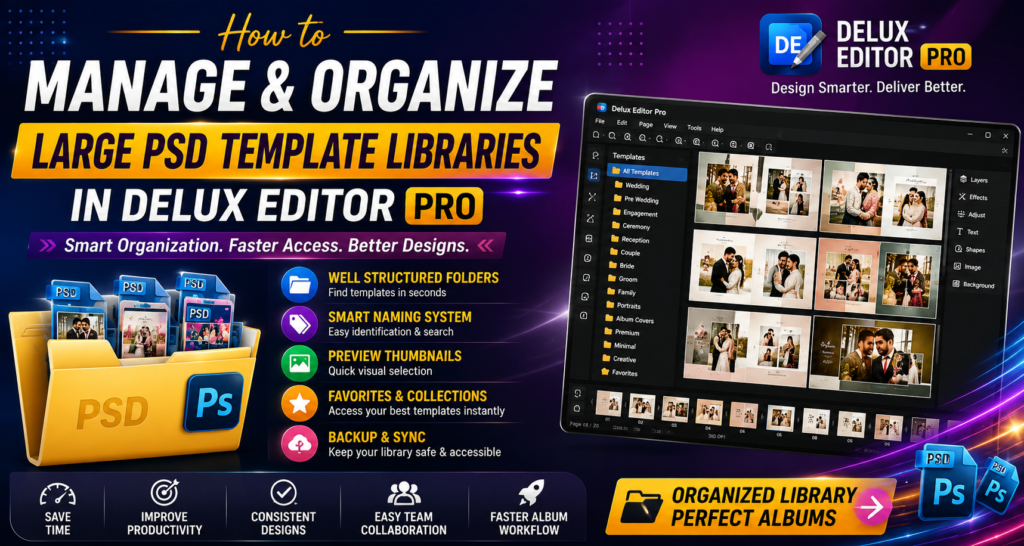

Managing hundreds or even thousands of Photoshop templates can quickly become difficult for wedding album designers. Searching through folders, finding the right layout, and keeping templates organized can consume valuable production time. Fortunately, PSD Template Libraries can be managed more efficiently with a clear organization system in Delux Editor Pro.
Instead of repeatedly browsing through scattered folders, designers can create a structured workflow that makes templates easier to find, preview, and reuse. As a result, album production becomes faster and more consistent.
In this guide, you will learn practical ways to organize large PSD Template Libraries and create a smoother workflow with Delux Editor Pro.
Why Organizing PSD Template Libraries Matters
A large template collection is useful only when you can find the right design quickly. Without proper organization, hundreds of PSD files can become difficult to manage.
For example, a wedding photographer may have separate layouts for:
- Wedding ceremonies
- Pre-wedding shoots
- Engagement sessions
- Reception events
- Bride portraits
- Groom portraits
- Family photographs
- Couple portraits
- Traditional ceremonies
- Album covers
Keeping these designs in a logical structure makes the entire editing process easier. Moreover, an organized library reduces repetitive searching and helps designers maintain a consistent visual style.
1. Create Categories for Your PSD Templates
The first step is to divide your templates into meaningful categories.
Instead of keeping every PSD file in one large folder, create groups based on the type of album or page design.
A useful structure could look like this:
PSD Templates
│
├── Wedding
│   ├── Couple
│   ├── Ceremony
│   ├── Reception
│   └── Family
│
├── Pre-Wedding
│   ├── Outdoor
│   ├── Indoor
│   └── Creative
│
├── Engagement
│   ├── Couple
│   └── Ring Ceremony
│
├── Portraits
│   ├── Bride
│   └── Groom
│
└── Album Covers
    ├── Wedding
    ├── Premium
    └── Minimal
This simple structure can make a huge difference when working with a large collection.
2. Use Consistent Template Names
A good file-naming system is another important part of managing PSD Template Libraries.
Avoid names such as:
design1.psdfinal.psdnewdesign.psdtemplate123.psd
These names provide little information about the design.
Instead, use descriptive names such as:
Wedding_Couple_02.psdReception_Grid_04.psdBride_Portrait_03.psdPreWedding_Modern_05.psdAlbumCover_Royal_02.psd
You can also include page size or layout information when necessary.
For example:
Wedding_Couple_Landscape_12x36_01.psd
Consequently, you can understand the template without opening the file first.
3. Organize Templates by Album Type
Different clients require different album styles. Therefore, organizing templates according to album type can make production much quicker.
Consider creating categories such as:
Traditional Wedding Albums
Use these for classic ceremonies, cultural events, and family photographs.
Modern Wedding Albums
These templates can feature clean typography, large photographs, minimal elements, and contemporary layouts.
Pre-Wedding Albums
Keep romantic, outdoor, cinematic, and creative layouts together.
Premium Albums
Create a separate section for highly detailed designs intended for premium clients.
This approach makes your library more practical because you can select designs according to the project instead of searching through every available template.
4. Use Preview Images for Faster Selection
Large PSD Template Libraries can contain hundreds of files. Opening every PSD just to inspect its layout wastes time.
A better solution is to maintain preview images for important templates.
For example:
Wedding_Couple_01.psdWedding_Couple_01.jpgWedding_Couple_02.psdWedding_Couple_02.jpg
The JPG or PNG preview allows you to quickly identify the design before opening the PSD file.
This is particularly useful when building a large professional template collection.
5. Separate Portrait and Landscape Layouts
Another useful organization method is separating templates according to orientation.
For example:
Templates
├── Landscape
│   ├── Couple
│   ├── Ceremony
│   └── Reception
│
└── Portrait
    ├── Bride
    ├── Groom
    └── Family
This prevents designers from accidentally selecting an unsuitable layout.
Furthermore, orientation-based organization becomes especially helpful when working with different album sizes.
6. Create a System for Premium Templates
Not every template in your collection needs to be treated equally.
You may have a group of frequently used premium layouts that produce particularly strong results. Keep these templates in a dedicated category.
For example:
Premium Templates
├── Luxury
├── Royal
├── Minimal
├── Cinematic
└── Creative
With this structure, your best designs remain easy to access.
7. Remove Duplicate PSD Files
Large collections often contain duplicate files.
For instance, you may find:
Wedding_01.psdWedding_01_Final.psdWedding_01_Final2.psdWedding_01_New.psdWedding_01_New_Final.psd
Keeping every version can make your library unnecessarily large.
Instead, identify the latest approved version and remove unnecessary duplicates. However, keep backups of important original files before deleting anything.
A clean library is easier to maintain and faster to search.
8. Create Version Numbers for Updated Templates
Sometimes a template needs to be modified while keeping previous versions available.
In that situation, use version numbers.
For example:
Wedding_Modern_01_v1.psdWedding_Modern_01_v2.psdWedding_Modern_01_v3.psd
Once the final version has been approved, you can mark it clearly:
Wedding_Modern_01_FINAL.psd
This prevents confusion between older and newer designs.
9. Keep Your Most-Used Templates Easily Accessible
Not every template is used equally.
Some layouts may be used every week, while others might be selected only occasionally. Therefore, create a Frequently Used or Favorites category for your most popular designs.
For example:
Frequently Used
├── Couple
├── Ceremony
├── Reception
├── Bride
└── Album Cover
This small change can save considerable time during busy production periods.
10. Use Delux Editor Pro for a Faster Design Workflow
Delux Editor Pro is designed to simplify wedding album production by bringing template-based design and editing workflows into a single environment.
When your PSD Template Libraries are properly organized, you can spend less time searching for files and more time refining the album.
A practical workflow could be:
Import photographs → Select template → Customize layout → Add text → Adjust images → Review → Export
This workflow is particularly useful for studios handling multiple wedding projects simultaneously.
11. Organize Templates by Design Style
You can also organize your library according to visual style.
For example:
Minimal
Clean layouts with plenty of white space.
Luxury
Elegant borders, decorative elements, and sophisticated typography.
Cinematic
Dramatic compositions with large photographs and atmospheric elements.
Traditional
Layouts designed for cultural ceremonies and classic wedding photography.
Modern
Simple grids, bold typography, and contemporary compositions.
This method makes it easier to match templates with a client’s preferred style.
12. Maintain a Backup of Your Template Library
A professional template collection can represent years of work. Therefore, backing it up is essential.
Keep at least one additional copy of your important PSD files on a separate storage device or reliable cloud storage service.
A practical structure might be:
Main Template Library
        ↓
Local Backup
        ↓
Cloud Backup
Regular backups can protect your designs against accidental deletion, hardware failure, or system problems.
13. Keep the Library Clean as It Grows
Organization should not be a one-time task.
As new templates are added, immediately place them into the correct category. Rename unclear files and remove duplicates regularly.
For example, you can schedule a quick library cleanup every month.
During the cleanup:
- Remove duplicate templates
- Delete unused versions
- Rename unclear files
- Add new categories when necessary
- Update previews
- Back up important files
- Move outdated designs to an archive
Consequently, your library stays manageable even as it grows.
14. Build a Reusable Wedding Album Workflow
Once your templates are organized, create a repeatable workflow for every project.
For example:
Step 1: Create the Project
Start a new album project in Delux Editor Pro.
Step 2: Select the Album Style
Choose the appropriate category, such as traditional, modern, luxury, or cinematic.
Step 3: Select Templates
Pick layouts based on the event and photographs.
Step 4: Add Photos
Place the client’s photographs into the selected layouts.
Step 5: Customize
Adjust images, typography, spacing, backgrounds, and other design elements.
Step 6: Review
Check every page for alignment, cropping, spelling, and visual consistency.
Step 7: Export
Prepare the completed album for printing or delivery.
A repeatable workflow makes large projects much easier to handle.
Benefits of Organized PSD Template Libraries
A well-managed template collection provides several advantages.
Faster Template Selection
Designers can find suitable layouts without searching through hundreds of files.
Better Productivity
Less time spent organizing files means more time available for creative work.
Consistent Design Quality
A categorized library makes it easier to maintain a consistent design style across projects.
Easier Team Collaboration
If multiple designers work in the same studio, standardized folders and naming conventions help everyone understand the library.
Better Project Management
Templates can be grouped according to album type, client requirements, and design style.
Final Thoughts
Managing large PSD Template Libraries does not have to be complicated. A clear folder structure, consistent naming system, useful previews, regular backups, and organized categories can transform a chaotic collection into a professional design resource.
More importantly, combining an organized library with Delux Editor Pro can create a faster and more efficient wedding album workflow. Instead of spending valuable hours searching for layouts, designers can quickly locate suitable templates and focus on creating polished albums.